
14 KiB
Install
ArchiveBox is primarily distributed as a Python package installed with uv, but it also depends on some system packages that can be installed manually or automatically with Docker. It usually takes less than ~10min to get ArchiveBox set up and running.
- Supported Systems
- Install Instructions
- Next Steps
Supported Systems



CPU Architectures: amd64 (x86_64), arm64 (aarch64), arm7
(Including 64-bit Intel/AMD, M1/M2/etc. Macs, Raspberry Pi >= 3)
- macOS: >=10.12 (with
pip) - Linux: Ubuntu (>= 18.04), Debian (>= 10), etc. (with
apt) - BSD: FreeBSD, OpenBSD, NetBSD etc (with
pkg)
Other systems are not officially supported but may work with degraded functionality:

- Windows: Via Docker, Docker in WSL2, or WSL2 without Docker (not recommended)
- Other UNIX systems: Arch, Nix, Guix, Fedora, SUSE, Arch, CentOS, etc.
Note: On arm7 the playwright package is not available, so chromium must be installed manually if needed.
You will also need at least 500MB of RAM (bare minimum), 2GB or greater is recommended. You may be able to reduce the RAM requirements if you disable all the chrome-based archiving methods with CHROME_ENABLED=False (or its USE_CHROME alias).
It's also recommended to use a filesystem with compression and/or deduplication (e.g. ZFS or BTRFS) for maximum efficiency.
Option A. Docker / Docker Compose Setup ⭐️
Docker Compose is the recommended way to get ArchiveBox, as it includes all the extras out-of-the-box and provides the best security and upgrade UX.
-
If you don't already have docker installed, follow the official instructions to get Docker on Linux, macOS, or Windows:
https://docs.docker.com/install/#supported-platforms ➡️ -
Then follow the Quickstart guide and read the Docker wiki page for next steps. ➡️
You can also run Dockerized ArchiveBox using UNRAID/TrueNAS/Proxmox/etc. or Kubernetes.
More info:
Dockerfiledocker-compose.yml- ArchiveBox Docker Quickstart + Usage + Configuration + Upgrading documentation
Option B. Automatic Setup Script
If you're on Linux with apt or FreeBSD with pkg there is an optional auto-setup script provided.
(or scroll further down for manual install instructions)
set -euo pipefail; setup_script="$(mktemp)"; curl -fsSL "file://${ARCHIVEBOX_PROJECT_DIR:-$PWD}/bin/setup.sh" > "$setup_script"
bash -n "$setup_script"; cmp "$setup_script" "${ARCHIVEBOX_PROJECT_DIR:-$PWD}/bin/setup.sh"
The script explains what it installs beforehand, and will prompt for user confirmation before making any changes to your system. The script uses Docker if already installed, but you can decline and it will install ArchiveBox using uv instead.
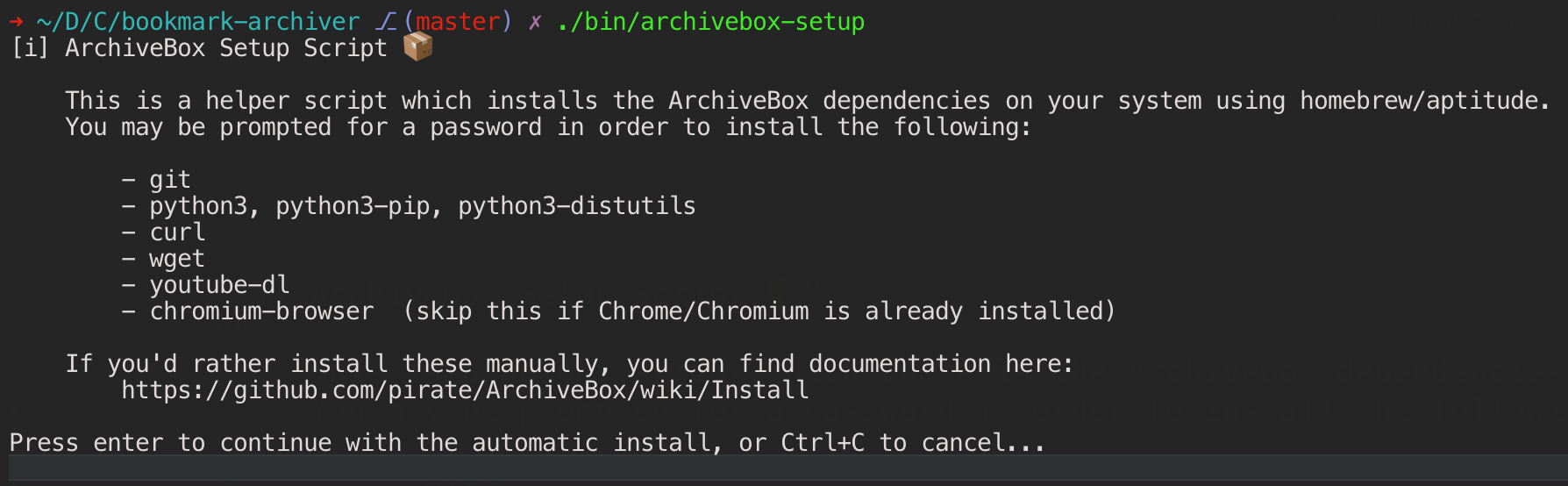
After running the setup script, continue with the Quickstart guide... ➡️
See here for our thoughts on the inherent limitations of
curl | shas an install method...
Option C. Bare Metal Setup
If you'd rather not use Docker or our auto-install script, you can follow these manual setup instructions to install ArchiveBox and its dependencies using uv & your system package manager of choice (e.g. apt, brew, pkg, nix, etc.).
See our Dependencies documentation to see the full list of dependencies and how they're used. Not all the dependencies are required for all modes. If you disable some archive methods you can skip installing those dependencies — for example, if you set MEDIA_ENABLED=False you don't need to install yt-dlp, and if you set PDF_ENABLED=False, SCREENSHOT_ENABLED=False, and DOM_ENABLED=False you don't need chromium.

More info:
- For help installing these, see the Manual Setup, Troubleshooting and Chromium Install pages.
- For per-plugin binary and enable/disable options (CHROME_BINARY, RIPGREP_BINARY,
<plugin>_ENABLED, etc.) see the abx-plugins config reference.
1. Install base system dependencies needed for your OS
Be aware, you'll need to keep all these packages up-to-date yourself over time!
macOS
Make sure you have Homebrew installed first.
set -euo pipefail; project_dir="${ARCHIVEBOX_PROJECT_DIR:-$PWD}"
brew install uv node git wget curl ffmpeg yt-dlp ripgrep sonic
tool_root="$(mktemp -d)"; export UV_TOOL_DIR="$tool_root/tools" UV_TOOL_BIN_DIR="$tool_root/bin"
uv tool install --python 3.13 --upgrade "$project_dir"
archivebox_data="$(mktemp -d)"; cd "$archivebox_data"
"$UV_TOOL_BIN_DIR/archivebox" init
"$UV_TOOL_BIN_DIR/archivebox" install
"$UV_TOOL_BIN_DIR/archivebox" version
brew list --versions uv node git wget curl ffmpeg yt-dlp ripgrep sonic
brew info ffmpeg >/dev/null
brew info --cask chromium >/dev/null
Ubuntu/Debian-based Systems
Use the third-party ArchiveBox apt repo for the simplest bare-metal install:
set -euo pipefail; echo 'deb [trusted=yes] https://archivebox.github.io/debian-archivebox dev main' > /etc/apt/sources.list.d/archivebox.list
apt-get update
apt-get install -y archivebox
archivebox_data="$(mktemp -d)"; cd "$archivebox_data"
archivebox init
archivebox install
archivebox add --plugins=parse_txt_urls "${ARCHIVEBOX_DOCS_URL_ONE:-https://example.com/}"
archivebox status
The apt package is a thin dev-channel wrapper around the normal Python install
flow. Runtime extractor
dependencies such as Chromium, yt-dlp, SingleFile, and other plugin-managed
tools are installed by archivebox install; use sudo archivebox install only
if you want it to install missing system packages via apt.
FreeBSD
set -euo pipefail; pkg install -y python313 git wget curl yt-dlp ripgrep py313-sqlite3 npm-node22 ffmpeg
pkg install -y chromium
python3.13 --version; node --version; git --version
wget --version; curl --version; yt-dlp --version; rg --version
ffmpeg -version; chromium --version
OpenBSD
set -euo pipefail; pkg_add python313 node wget git curl yt-dlp ffmpeg ripgrep chromium; python3.13 --version; node --version; chromium --version
Arch Linux / Nix / Guix / etc. Other OSs
See the Quickstart instructions for other operating systems and release channels. ➡️
2. Install ArchiveBox using uv
If you are not using the apt package above, install ArchiveBox with uv.
set -euo pipefail; project_dir="${ARCHIVEBOX_PROJECT_DIR:-$PWD}"
tool_root="$(mktemp -d)"; export UV_TOOL_DIR="$tool_root/tools" UV_TOOL_BIN_DIR="$tool_root/bin"
uv tool install --python 3.13 --upgrade "$project_dir"
"$UV_TOOL_BIN_DIR/archivebox" --help
3. Install runtime dependencies using archivebox install
Finish installing runtime dependencies for the enabled ArchiveBox plugins.
set -euo pipefail; project_dir="${ARCHIVEBOX_PROJECT_DIR:-$PWD}"
archivebox_data="$(mktemp -d)"
cd "$archivebox_data"
uv run --project "$project_dir" --no-sync archivebox init
uv run --project "$project_dir" --no-sync archivebox install
uv run --project "$project_dir" --no-sync archivebox add --plugins=parse_txt_urls "${ARCHIVEBOX_DOCS_URL_ONE:-https://example.com/}"
uv run --project "$project_dir" --no-sync archivebox version
uv run --project "$project_dir" --no-sync archivebox help
Troubleshooting
Make sure the uv-installed version of archivebox is available in your $PATH.
set -euo pipefail; project_dir="${ARCHIVEBOX_PROJECT_DIR:-$PWD}"
archivebox_data="$(mktemp -d)"; cd "$archivebox_data"
uv run --project "$project_dir" --no-sync archivebox init
uv tool list
uv run --project "$project_dir" --no-sync archivebox version
uv run --project "$project_dir" --no-sync archivebox status
uv run --project "$project_dir" --no-sync archivebox help
(ensure the version shown is the most recent available from Releases)
Make sure to run archivebox as an unprivileged user (i.e. without sudo / not logged in as root).
Make sure to run all commands, including archivebox version, archivebox help, etc. inside a data directory (or a new empty dir that will become a data dir).
If you have issues getting Chromium / Google Chrome or other dependencies working with ArchiveBox, see the Chromium Install and Troubleshooting pages for more detailed instructions.
Next Steps: Add some URLs to archive and try out CLI / Web UI
For guides on how to import URLs from different sources into ArchiveBox, check out Input Formats and Preparing URLs. ➡️
set -euo pipefail; project_dir="${ARCHIVEBOX_PROJECT_DIR:-$PWD}"; archivebox_data="$(mktemp -d)"; cd "$archivebox_data"; uv run --project "$project_dir" --no-sync archivebox init
set -euo pipefail; project_dir="${ARCHIVEBOX_PROJECT_DIR:-$PWD}"; archivebox_data="$(mktemp -d)"; cd "$archivebox_data"; uv run --project "$project_dir" --no-sync archivebox init
printf '%s\n' "${ARCHIVEBOX_DOCS_URL_ONE:-https://example.com/}" > bookmarks_export.html
uv run --project "$project_dir" --no-sync archivebox add --help; uv run --project "$project_dir" --no-sync archivebox add --plugins=parse_txt_urls < bookmarks_export.html
set -euo pipefail; project_dir="${ARCHIVEBOX_PROJECT_DIR:-$PWD}"; archivebox_data="$(mktemp -d)"; cd "$archivebox_data"; uv run --project "$project_dir" --no-sync archivebox init
uv run --project "$project_dir" --no-sync archivebox list
uv run --project "$project_dir" --no-sync archivebox status
set -euo pipefail; project_dir="${ARCHIVEBOX_PROJECT_DIR:-$PWD}"; archivebox_data="$(mktemp -d)"; cd "$archivebox_data"; uv run --project "$project_dir" --no-sync archivebox init
uv run --project "$project_dir" --no-sync archivebox server --help
printf 'Open http://localhost:%s\n' "${ARCHIVEBOX_DOCS_ARCHIVEBOX_PORT:-8000}"
See our Usage Wiki documentation page for more examples.
Next Steps: Upgrading Archivebox to a new version
Make sure all apt/brew/pkg/etc. dependencies from above are installed & up-to-date first.
set -euo pipefail; project_dir="${ARCHIVEBOX_PROJECT_DIR:-$PWD}"
tool_root="$(mktemp -d)"; export UV_TOOL_DIR="$tool_root/tools" UV_TOOL_BIN_DIR="$tool_root/bin"
uv tool install --python 3.13 --upgrade "$project_dir"
archivebox_data="$(mktemp -d)"; cd "$archivebox_data"
"$UV_TOOL_BIN_DIR/archivebox" init
"$UV_TOOL_BIN_DIR/archivebox" install
Check our more detailed Upgrading documentation and Release Notes if you run into any problems. ➡️
Further Reading
- Read Usage to learn how to use the ArchiveBox CLI and HTML output
- Read Configuration to learn about the various archive method options
- Read Scheduled Archiving to learn how to set up automatic daily archiving
- Read Publishing Your Archive if you want to host your archive for others to access online
- Read Troubleshooting if you encounter any problems