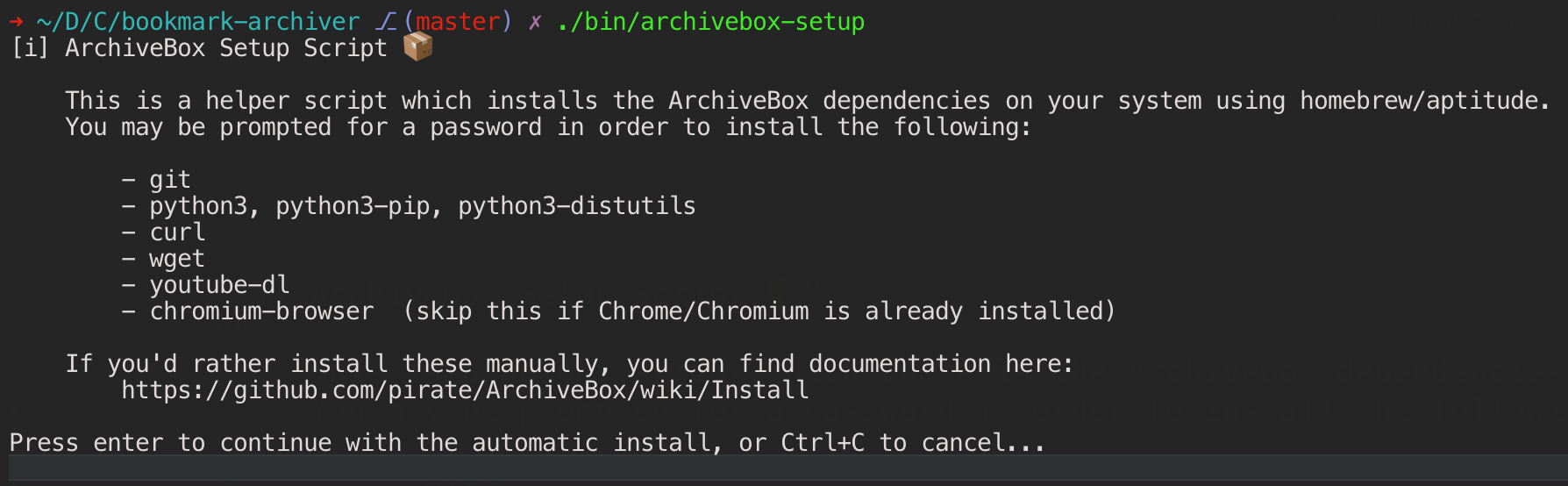
 After running the setup script, continue with the [Quickstart](https://github.com/ArchiveBox/ArchiveBox#%EF%B8%8F-next-steps) guide... ➡️
> *See here for our thoughts on the [inherent limitations of `curl | sh`](https://docs.monadical.com/s/against-curl-sh) as an install method...*
After running the setup script, continue with the [Quickstart](https://github.com/ArchiveBox/ArchiveBox#%EF%B8%8F-next-steps) guide... ➡️
> *See here for our thoughts on the [inherent limitations of `curl | sh`](https://docs.monadical.com/s/against-curl-sh) as an install method...*
 **More info:**
- For help installing these, see the [Manual Setup](#manual-setup), [[Troubleshooting]] and [[Chromium Install]] pages.
- For per-plugin binary and enable/disable options (CHROME_BINARY, RIPGREP_BINARY, `
**More info:**
- For help installing these, see the [Manual Setup](#manual-setup), [[Troubleshooting]] and [[Chromium Install]] pages.
- For per-plugin binary and enable/disable options (CHROME_BINARY, RIPGREP_BINARY, `### 1. Install `uv` or the ArchiveBox OS package ArchiveBox itself is the only tool you need to bootstrap manually. After that, `archivebox install` resolves every runtime dependency through `abxpkg`, preferring compatible host binaries and installing managed ones only when needed.
 #### macOS
Make sure you have [Homebrew](https://brew.sh/) installed first.
```bash
# install ArchiveBox directly with Homebrew
brew tap archivebox/archivebox
brew trust archivebox/archivebox
brew install archivebox
# or use Homebrew to install uv, then install ArchiveBox with uv
brew install uv
uv tool install --python 3.13 --prerelease allow --upgrade archivebox
```
#### macOS
Make sure you have [Homebrew](https://brew.sh/) installed first.
```bash
# install ArchiveBox directly with Homebrew
brew tap archivebox/archivebox
brew trust archivebox/archivebox
brew install archivebox
# or use Homebrew to install uv, then install ArchiveBox with uv
brew install uv
uv tool install --python 3.13 --prerelease allow --upgrade archivebox
```
 #### Ubuntu/Debian-based Systems
Use the third-party ArchiveBox apt repo for the simplest bare-metal install:
```bash
echo 'deb [trusted=yes] https://archivebox.github.io/debian-archivebox dev main' | sudo tee /etc/apt/sources.list.d/archivebox.list
sudo apt update
sudo apt install archivebox
mkdir -p ~/archivebox/data
cd ~/archivebox/data
archivebox init
archivebox install
archivebox add 'https://example.com'
```
The apt package is a thin dev-channel wrapper around the normal Python install
flow. Runtime extractor
dependencies such as Chromium, yt-dlp, SingleFile, and other plugin-managed
tools are installed by `archivebox install`; use `sudo archivebox install` only
if you want it to install missing system packages via apt.
Alternatively, install with `uv` or [Homebrew on Linux](https://docs.brew.sh/Homebrew-on-Linux):
```bash
# uv
curl -LsSf https://astral.sh/uv/install.sh | sh
source "$HOME/.local/bin/env"
uv tool install --python 3.13 --prerelease allow --upgrade archivebox
# or Homebrew, after installing Linuxbrew
brew tap archivebox/archivebox
brew trust archivebox/archivebox
brew install archivebox
```
#### Ubuntu/Debian-based Systems
Use the third-party ArchiveBox apt repo for the simplest bare-metal install:
```bash
echo 'deb [trusted=yes] https://archivebox.github.io/debian-archivebox dev main' | sudo tee /etc/apt/sources.list.d/archivebox.list
sudo apt update
sudo apt install archivebox
mkdir -p ~/archivebox/data
cd ~/archivebox/data
archivebox init
archivebox install
archivebox add 'https://example.com'
```
The apt package is a thin dev-channel wrapper around the normal Python install
flow. Runtime extractor
dependencies such as Chromium, yt-dlp, SingleFile, and other plugin-managed
tools are installed by `archivebox install`; use `sudo archivebox install` only
if you want it to install missing system packages via apt.
Alternatively, install with `uv` or [Homebrew on Linux](https://docs.brew.sh/Homebrew-on-Linux):
```bash
# uv
curl -LsSf https://astral.sh/uv/install.sh | sh
source "$HOME/.local/bin/env"
uv tool install --python 3.13 --prerelease allow --upgrade archivebox
# or Homebrew, after installing Linuxbrew
brew tap archivebox/archivebox
brew trust archivebox/archivebox
brew install archivebox
```
### 3. Install runtime dependencies using `archivebox install` Finish installing runtime dependencies for the enabled ArchiveBox plugins. ```bash # create a new empty folder anywhere to hold your collection, and cd into it mkdir -p ~/archivebox/data && cd ~/archivebox/data # instantiate the directory as an archivebox collection dir archivebox init # auto-install runtime dependencies such as Chromium, yt-dlp, SingleFile, etc. archivebox install # archive a first URL archivebox add 'https://example.com' # ✅ see a final detailed breakdown of all the installed dependencies and commands available archivebox version archivebox help ```
### Troubleshooting Make sure the `uv`-installed version of `archivebox` is available in your `$PATH`. ```bash uv tool list # show info about uv-installed tools echo $PATH # show the directories your system is searching for binaries type -a archivebox # show all installed archivebox binaries available cd ~/archivebox/data archivebox version # ⭐️ show lots of useful info about installed dependencies and more archivebox status archivebox help ``` (ensure the version shown is the most recent available from [Releases](https://github.com/ArchiveBox/ArchiveBox/releases)) ArchiveBox can be launched as `root` by setup and package-manager flows; it creates or selects the `archivebox` service account and drops privileges before writing collection data. Run collection commands such as `init`, `install`, `add`, and `status` inside the data directory. Informational commands such as `version` and `help` can run anywhere. If you have issues getting Chromium / Google Chrome or other dependencies working with ArchiveBox, see the [[Chromium Install]] and [[Troubleshooting]] pages for more detailed instructions.
### Next Steps: Add some URLs to archive and try out CLI / Web UI For guides on how to import URLs from different sources into ArchiveBox, check out [Input Formats](https://github.com/ArchiveBox/ArchiveBox#input-formats) and [Preparing URLs](https://github.com/ArchiveBox/ArchiveBox/wiki/Quickstart#2-get-your-list-of-urls-to-archive). ➡️ ```bash cd ~/archivebox/data ``` ```bash # feed in your URLs to start archiving! archivebox add --help archivebox add < ~/Downloads/bookmarks_export.html ``` ```bash # inspect the newly added Snapshots via the CLI archivebox list archivebox status ``` ```bash # OR start the webserver and view them in the Web UI archivebox server 0.0.0.0:8000 # Visit http://web.archivebox.localhost:8000 in a browser ``` See our [[Usage]] Wiki documentation page for more examples.
### Next Steps: *Upgrading Archivebox to a new version* Upgrade ArchiveBox itself first; `archivebox install` will then re-resolve compatible host binaries and update any managed runtime dependencies. ```bash # get the dev version of ArchiveBox uv tool install --python 3.13 --prerelease allow --upgrade archivebox # run init inside any data directories to migrate the index to the latest version cd ~/archivebox/data archivebox init # update collection index & apply any migrations archivebox install # update runtime dependencies to latest versions archivebox update --migrate-only # migrate/reconcile Snapshot files and metadata archivebox status # check collection health after the upgrade ``` Check our more detailed [Upgrading](https://github.com/ArchiveBox/ArchiveBox/wiki/Upgrading-or-Merging-Archives) documentation and [Release Notes](https://github.com/ArchiveBox/ArchiveBox/releases) if you run into any problems. ➡️
---
### Further Reading - Read [[Usage]] to learn how to use the ArchiveBox CLI and HTML output - Read [[Configuration]] to learn about the various archive method options - Read [[Scheduled Archiving]] to learn how to set up automatic daily archiving - Read [[Publishing Your Archive]] if you want to host your archive for others to access online - Read [[Troubleshooting]] if you encounter any problems